Sections
Section
Sections are the smallest building block in opencrowd. Sections comprise a question. Questions are stored in a Task. A task collects the questions into a HIT. A HIT is displayed and worked on by a worker. A completed HIT is returned.
Module author: Michael Romero <michaelrom@zillowgroup.com>
-
class
opencrowd.model.section.section.Section(opencrowd_id, hidden)¶ The opencrowd server primarily acts as an API between the developer and the opencrowd library. It also performs memory management and operations across all elements (adding/tracking/deleting projects, tasks, HITs, questions, sections).
Parameters: project_ids (list of str) – the project ids to attach to this instance of the server. For advanced usage only, otherwise leave default and run regenerate() -
call_save_function()¶ Some sections require special javascript code to save themselves in the HTML. New sections would implement this abstract method. For example, the bounding box maintains special variables to maintain states.
-
generate_save_function()¶ The generic save function in the opencrowd html template loads section-specific save functions into a particular area. This function generates the calling code to such areas. For example, the bounding box section will load save_bounding_box() into the generic save() function.
-
to_json()¶ This operation is used by the templating engine, jinja, to return values for DAG generation in the javascript. These values, which are appended with any specific section values (images have urls, text boxes have strings, etc.) are stored in a global javascript variable describing the DAG.
-
Bounding Box
Have workers draw bounding boxes on an image
Module author: Michael Romero <michaelrom@zillowgroup.com>
-
class
opencrowd.model.section.bounding_box.BoundingBox(url=None, hidden=False, opencrowd_id=None)¶ Create and manage a new BoundingBox section. The BoundingBox section consists of an image, with a jcrop instance running on top of the image. This allows the user to manipulate and draw boxes on top of the image.
Parameters: - url (str) – image location to run the bounding box on
- hidden (bool) – if this section should initially be visible, or if it will appear later due to a parent being activated
- opencrowd_id (str) – must be unique, will default to a uuid
-
call_save_function()¶ Some sections require special javascript code to save themselves in the HTML. New sections would implement this abstract method. For example, the bounding box maintains special variables to maintain states.
-
generate_save_function()¶ The generic save function in the opencrowd html template loads section-specific save functions into a particular area. This function generates the calling code to such areas. For example, the bounding box section will load save_bounding_box() into the generic save() function.
-
set_url(url)¶ set the url of the image that will be displayed for the bounding box operation.
Parameters: url (str.) – the url address of the image.
-
to_json()¶ This operation is used by the templating engine, jinja, to return values for DAG generation in the javascript. These values, which are appended with any specific section values (images have urls, text boxes have strings, etc.) are stored in a global javascript variable describing the DAG.
bounding_box = BoundingBox(url="http://lorempixel.com/800/400/nature")

Rendering of a bounding box section
Collapse Panel
-
class
opencrowd.model.section.collapse_panel.CollapsePanel(title='', body='', footer='', hidden=False, opencrowd_id=None)¶ Create and manage a new CollapsePanel section. The CollapsePanel is a bootstrap collapsible panel. It consists of 3 HTML sections, which can be standard strings: the title, body, and footer. The body and footer appear, via dropdown, when the title is clicked.
Parameters: - title (str) – html string
- body (str) – html string
- footer (str) – html string
-
to_json()¶ This operation is used by the templating engine, jinja, to return values for DAG generation in the javascript. These values, which are appended with any specific section values (images have urls, text boxes have strings, etc.) are stored in a global javascript variable describing the DAG.
collapse_panel = CollapsePanel(title="Title", body="Body", footer="Footer")

A closed panel

An open panel
Image
-
class
opencrowd.model.section.image.Image(urls=None, hidden=False, opencrowd_id=None)¶ Create and manage a new Image section. The Image section will dynamically fit images into appropriate columns. For instance, a single image will take up the entire section space. Two images will render side by side, 3 and 4 will render across a single line, and more will be split across multiple lines.
Parameters: urls – a list of strings pointing to the url(s) of the image(s) -
add_url(url)¶ add a url to the Image section
Parameters: url – a string of the url
-
to_json()¶ This operation is used by the templating engine, jinja, to return values for DAG generation in the javascript. These values, which are appended with any specific section values (images have urls, text boxes have strings, etc.) are stored in a global javascript variable describing the DAG.
-
image = Image(urls=['http://lorempixel.com/400/200/nature/'])
image2 = Image(urls=['http://lorempixel.com/400/200/nature/', 'http://lorempixel.com/400/200/nature/'])
image3 = Image(urls=['http://lorempixel.com/400/200/nature/', 'http://lorempixel.com/400/200/nature/', 'http://lorempixel.com/400/200/nature/'])
image4 = Image(urls=['http://lorempixel.com/400/200/nature/', 'http://lorempixel.com/400/200/nature/', 'http://lorempixel.com/400/200/nature/', 'http://lorempixel.com/400/200/nature/'])
image6 = Image(urls=['http://lorempixel.com/400/200/nature/', 'http://lorempixel.com/400/200/nature/', 'http://lorempixel.com/400/200/nature/', 'http://lorempixel.com/400/200/nature/', 'http://lorempixel.com/400/200/nature/', 'http://lorempixel.com/400/200/nature/'])
image12 = Image(urls=['http://lorempixel.com/400/200/nature/', 'http://lorempixel.com/400/200/nature/', 'http://lorempixel.com/400/200/nature/', 'http://lorempixel.com/400/200/nature/', 'http://lorempixel.com/400/200/nature/', 'http://lorempixel.com/400/200/nature/', 'http://lorempixel.com/400/200/nature/', 'http://lorempixel.com/400/200/nature/', 'http://lorempixel.com/400/200/nature/', 'http://lorempixel.com/400/200/nature/', 'http://lorempixel.com/400/200/nature/', 'http://lorempixel.com/400/200/nature/'])
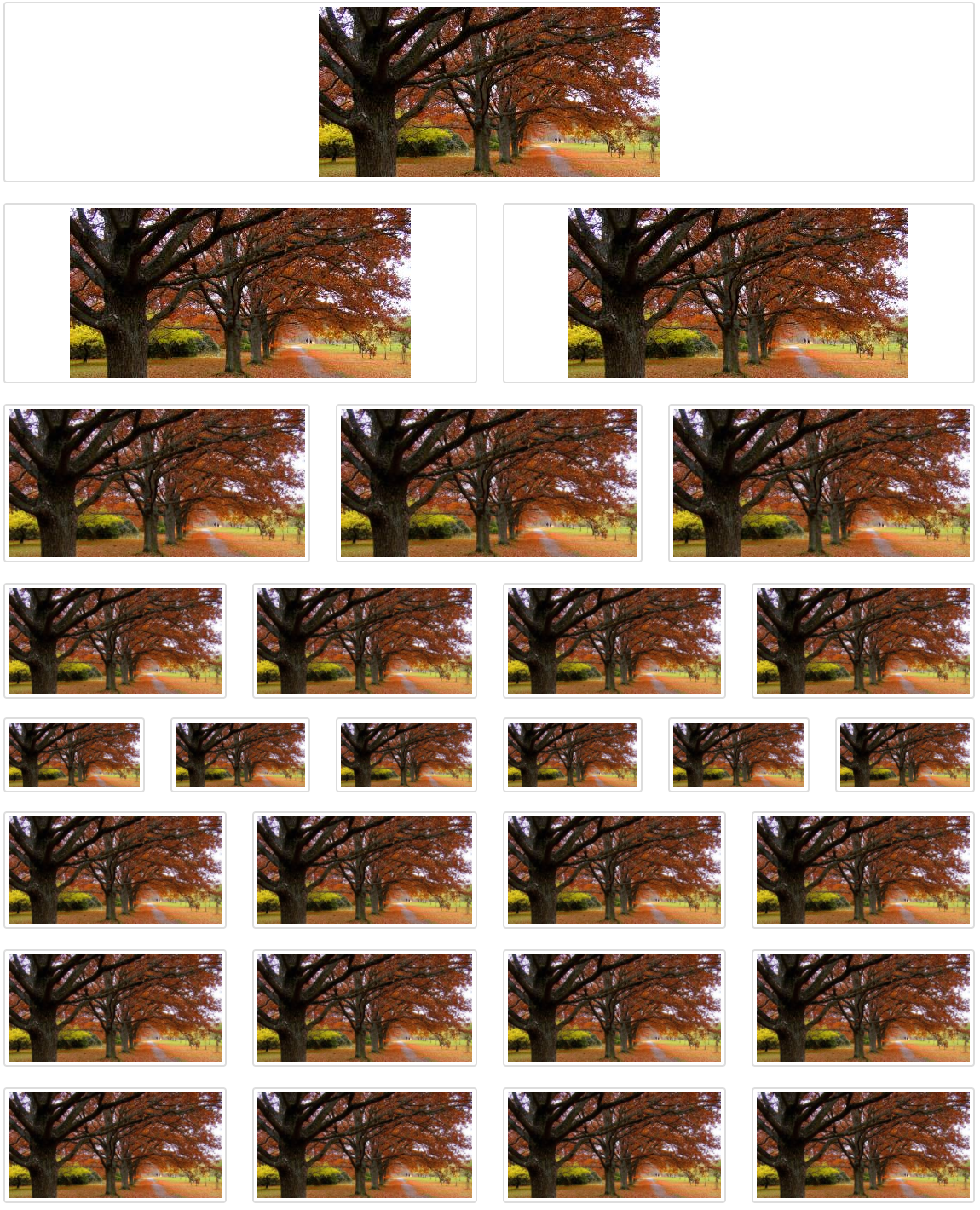
An example of a 1,2,3,4,6, and 12 images stacked together in 6 sections.
Input Group
-
class
opencrowd.model.section.input_group.CheckboxGroup(opencrowd_id=None, hidden=False, options=None)¶ Create and manage a new CheckboxGroup section. Options are buttons that can be optionally loaded on init. A CheckboxGroup is composed of Options, which are HTML buttons. In this case, they’re checkbox buttons.
Parameters: options (list of Option sections) – list of option sections
-
class
opencrowd.model.section.input_group.InputGroup(input_type, opencrowd_id=None, options=None, hidden=False)¶ -
call_save_function()¶ Some sections require special javascript code to save themselves in the HTML. New sections would implement this abstract method. For example, the bounding box maintains special variables to maintain states.
-
to_json()¶ This operation is used by the templating engine, jinja, to return values for DAG generation in the javascript. These values, which are appended with any specific section values (images have urls, text boxes have strings, etc.) are stored in a global javascript variable describing the DAG.
-
-
class
opencrowd.model.section.input_group.Option(opencrowd_id=None, hidden=False, text='', on_hover='', value='', correct=None, children=None)¶ Create and manage a new Option section. Options are the building blocks of InputGroups (Checkbox and Radio). Each Option corresponds to a button that will be rendered within the InputGroup.
Parameters: - text (list of Option sections) – list of option sections
- on_hover (list of Option sections) – list of option sections
- value (list of Option sections) – list of option sections
- correct (bool) – if this answer is deemed “correct”, which is used in later analysis of workers
- children (list of Sections) – will make the child section appear if this button is clicked, and render a new DAG according to that sections children
-
add_children(child)¶ Create and manage a new Option section. Options are the building blocks of InputGroups (Checkbox and Radio). Each Option corresponds to a button that will be rendered within the InputGroup.
Parameters: child (Section) – the child to add # in this example, we display an image that we know has a shower # we displayed a textbox to ask the user if there is a shower # the user is supposed to select 'Yes', which is correct. # After selecting yes, the showerbutton has a child named bathroom checkbox group # which further asks the user if the shower has other attributes shower_button = Option(text='Yes', on_hover='The image doesn't have a shower', value='shower', correct=True) no_shower_button = Option(text='No', on_hover='The image does have a shower', value='no_shower', correct=None) shower_radio_group = RadioGroup(options=[shower_button, no_shower_button]) bathroom_checkbox_group = CheckboxGroup(options=[spout_checkbox, tub_checkbox]) shower_button.add_children(bathroom_checkbox_group)
-
to_json()¶ This operation is used by the templating engine, jinja, to return values for DAG generation in the javascript. These values, which are appended with any specific section values (images have urls, text boxes have strings, etc.) are stored in a global javascript variable describing the DAG.
-
class
opencrowd.model.section.input_group.RadioGroup(opencrowd_id=None, hidden=False, options=None)¶ Create and manage a new RadioGroup section. Options are buttons that can be optionally loaded on init. A RadioGroup is composed of Options, which are the HTML buttons. In this case, they’re radio buttons.
Parameters: options (list of Option sections) – list of option sections
radio_option_a = Option(text='a1', on_hover='hover for a1', value='a1', correct=None)
radio_option_b = Option(text='a2', on_hover='hover for a2', value='a2', correct=None)
checkbox_option_a = Option(text='b1', on_hover='hover for b1', value='b1', correct=None)
checkbox_option_b = Option(text='b2', on_hover='hover for b2', value='b2', correct=None)
radio = RadioGroup(options=[option_a, option_a2])
checkbox = CheckboxGroup(options=[option_b, option_b2])
Text Box
-
class
opencrowd.model.section.text_box.TextBox(main_title=None, text=None, callout_type='default', opencrowd_id=None, hidden=False)¶ Create and manage a new TextBox section. A TextBox section is used for prompting or educating workers, and generally precedes other sections.
This Section was created with code from Chris Pratt https://cpratt.co/ https://cpratt.co/twitter-bootstrap-callout-css-styles/
Parameters: callout_type (str) – affects the color of the textbox. default: grey primary: blue success: green info: light blue warning: yellow danger: red -
to_json()¶ This operation is used by the templating engine, jinja, to return values for DAG generation in the javascript. These values, which are appended with any specific section values (images have urls, text boxes have strings, etc.) are stored in a global javascript variable describing the DAG.
-